Monday, January 15, 2007

Practical .NET 2.0 Networking Projects

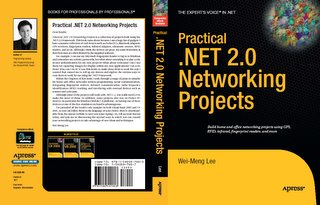
I have an uncoming book to be released on the 29th of this month - Practical .NET 2.0 Networking Projects. This book demonstrates some of the key networking technologies that are being made easily accessible through .NET Framework 2.0. It discusses communication between wired machines and between networks and mobile devices. The book teaches you about the technologies by walking you through sample projects in a straightforward and direct way.
The book begins by discussing background theory so you'll get comfortable with the layout of the .NET Framework and Compact Framework from a networking perspective. Then you'll use the APIs within these frameworks to build a variety of cutting-edge networking applications that cover everything from Bluetooth and RFID communication to sockets programming and chat servers. You'll build working examples for each project, which you can also customize and use for your own purposes. The featured projects cover:
  • Basic introduction to network programming in .NET 2.0
  • Sockets programming
  • Serial communication
  • Bluetooth and GPS
  • Infrared networking to mobile devices
  • RFID

It is available for pre-order now at Amazon.com. Check it out!

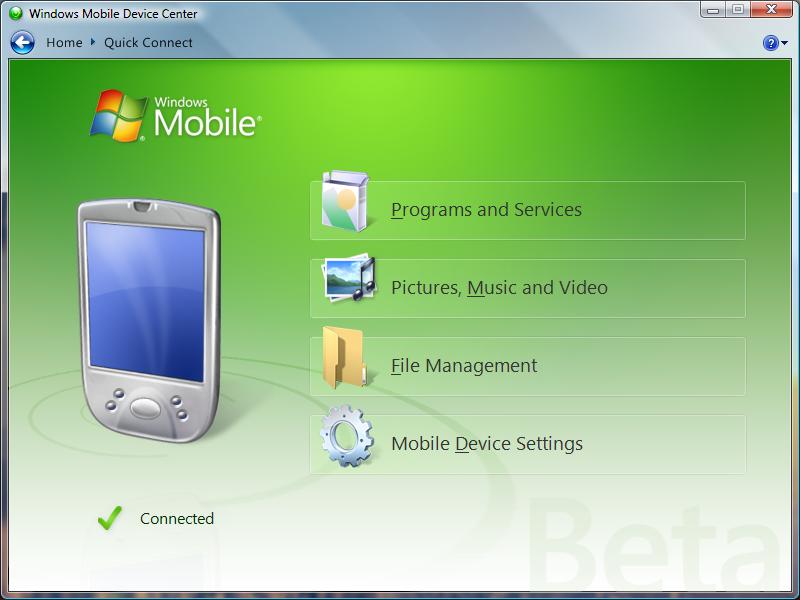
Windows Mobile Device Center (a.k.a. ActiveSync)

If you are a Pocket PC (Windows Mobile) user and have been syncing it with your Windows XP computer, you will be in for a surprise when you move to Windows Vista. In Windows Vista, ActiveSync is no longer supported. In place of ActiveSync is Windows Mobile Device Center, which enables you to set up new partnerships, synchronize content and manage music, pictures and video with any Windows Mobile 2003 or Windows Mobile 5.0 powered device. The Windows Mobile Device Center Beta is only supported on Windows Vista RC1 or later.

Applications Switching in Windows Vista

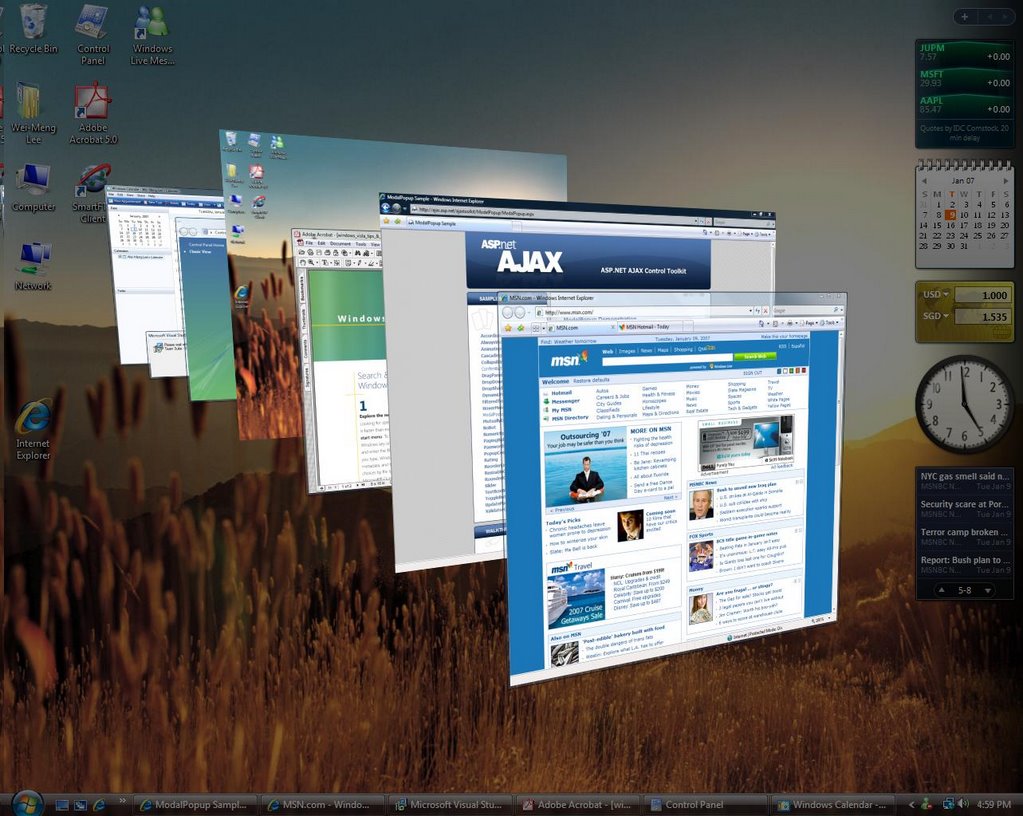
In the previous versions of Windows (XP, 2003, 2000, etc), you press Alt-Tab to switch between applications. One of the frustrations with using the Alt-Tab is that if you have a large number of applications open you have to cycle through each of them one-by-one; you can't simply click to select the application you want to switch to.With Vista, you have two choices:
  • Alt-Tab - You can cycle through all the open applications and click to select the application you want to switch to.
  • Windows-Tab - This will give you a 3-D view of all the open applications. You can also click to select the application to switch to. For this feature, you need to have the Aero Glass enabled.

Using Visual Studio 2005 in Windows Vista

If you are using Visual Studio 2005 in Windows Vista, be sure to update it with the following service packs (in the order shown):

Sunday, January 14, 2007

Building your own PC?

In the last 18 years, I have owned numerous computers and interestingly, of all the machines I have used, only one is factory built (the first PC I own). I still remember the excitement I had the first time I got a PC – that was a IBM-compatible XT (running the Intel 8088 chip), 640KB of memory with two disk drives – one 5.25” and the other 3.5”. Hard disk at that time was a luxury and I just could not afford one. And so I happily programmed on it and even partitioned part of the 640KB as a virtual drive to speed up the performance of the PC. After saving enough money two years later, I finally upgraded the PC to an AT (Advanced Technology) running the Intel 80286 chip. I brought the PC to an upgrade shop and changed the motherboard to an 80286 and added a 40MB (yes, you read it right!) Western Digital hard disk.

At that time, you can “low-level” format, as well as “high-level” format a hard disk. I am not sure what happened then, but after formatting the hard disk, it started making funny noises and stopped working. And so I had to lug the PC down to the repair shop again to change a new one. Fortunately, I managed to change a new one or else I had to folk out another USD$300 for a new hard disk. But that incident made me determined to learn more about the inner workings of my PC and I started to read more about the parts that goes into a PC. Along the way, I bought second-hand parts like casings, hard disks and motherboards and try to assemble them together. I learnt things the hard way – sometimes the parts don’t work together, or are of the wrong dimensions to fit into my casing. But learning through mistakes is the best way to learn. And eventually I was good enough to assemble PCs for friends and made some money to buy more computer books ;-)

Recalling my past experiences, if you want to learn more about the PC hardware you are using, I have the following suggestions:

* Pop into a local hardware shop and immerse in the tech-talk. Get yourself acquainted with the different jargons – ATX, S-ATA, Core 2 Duo, RAID, DDR2, ECC, etc. You may not understand everything the first time you encounter these terms, but trust me – after walking a few more shops you will have a good idea of what each term means.

* When in doubt, ask. Always ask the difference between variations of a product. For example, you can always ask the difference between a P-ATA and an S-ATA hard disk. The shop who is willing to do business with you will be delighted to share more information with you.

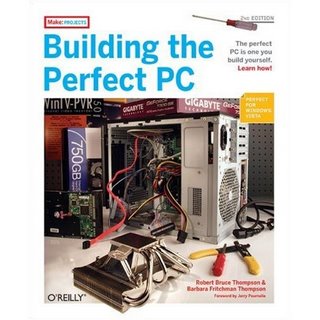
* Get a good book. After seeing and touching the hardware, it is always good to find a moment to recap what you have learnt and understand the theory behind it. In the early days, I was always very fascinated with hard disks and I thoroughly enjoyed the “The Hard Disk Survival Guide” by Mark Minasi. Today, I keep the “Building the Perfect PC” (1st and 2nd editions; written by Robert Thompson, Barbara Fritchman Thompson) by my side so that I can always refer to it whenever I need to. Robert and Barbara have done a good job sharing with you their experiences in building the perfect PC for different kinds of tasks. I highly recommend this book as it gives you various advices in choosing the best part for your PC so that you can avoid making the costly mistake yourself. I just wished the book was around when I first started computing.

And the final suggestion is, of course, get your hands dirty!
Tuesday, January 09, 2007

Performing Transactions in Windows Workflow

A transaction-oriented application is one of the common things that developers are tasked with handling, but that doesn't mean it's easy. Transactions are tricky thanks to tricky rollback conditions that must execute flawlessly. Find out why Windows Workflow can take the pain out of building transactions with a visual roadmap.

Input Validation

I demonstrate how to use the validation controls in ASP.NET, as well as how the validation controls have been improved in ASP.NET 2.0.

* Membership required to view the article.

Build Snippets with Code Snippet Editor for Visual Basic 2005

Want to create code snippets for Visual Studio 2005, but don't want to get your hands dirty? I show you how to do it by using the Code Snippet Editor for Visual Basic 2005, a shared source project developed by the Visual Basic developer community.

Building FTP Services Using .NET 2.0

.NET 2.0 provides two new managed classes for performing FTP accesses. With them, you can incorporate FTP into your applications easily. I show you how to perform the most common FTP functions using these two new classes.

Build Your Own Media Center PC, Part 2

Windows Media Center turns your ordinary PC into an all-in-one home entertainment center to watch and record TV programs, play DVDs, listen to music, share your digital photos, and more. In this second part of a two-part series, I show you how to assemble the PC and watch and record TV.

Monday, January 08, 2007

A good resource on Windows development tools

Windows Developer Power Tools: Turbocharge Windows Development with More Than 140 Free and Open Source Tools (Paperback)
by James Avery, Jim Holmes

I am currently reading this book and at close to 1300 pages it is a very comprehensive resource if you are a Windows developer. If you are a Visual Studio developer, then this book is for you as it contains a lot of coverage on .NET related tools and add-ons.

What I am reading now...

iWoz: From Computer Geek to Cult Icon: How I Invented the Personal Computer, Co-Founded Apple, and Had Fun Doing It (Hardcover)
by Steve Wozniak, Gina Smith

Wednesday, January 03, 2007

New Course on .NET 2.0

This month, I am launching a new course on .NET 2.0 (3 days). If your company/school is interested to get jumpstarted in key .NET 2.0 technologies, contact me at wei_meng_lee@hotmail.com for a quote.

Here are the key topics covered:

1) Windows Forms 2.0
2) ASP.NET 2.0
3) ASP.NET AJAX Framework
4) Hands-on Projects
* Mesh-up - Using Google Maps with GPS
* AJAX-enabling an ASP.NET Web site
* Hardware Integration – Incorporating fingerprint recognition into your .NET applications
* Hardware Integration – Incorporating a webcam into your .NET applications

Wednesday, December 06, 2006

Build Your Own Media Center PC, Part 1

Windows Media Center turns your ordinary PC into an all-in-one home entertainment center to watch and record TV programs, play DVDs, listen to music, share your digital photos, and more. In this first part of a two-part article, Wei Meng-Lee shows you how to build a Media Center PC from scratch.

Monday, October 30, 2006

Take Your Apps Far and Wide with a GPS Tracking System

You already know that GPS is used extensively in a wide variety of mobile devices in order to track delivery and service vehicles—or any other mobile fleet. This kind of application is not as difficult as you may at first think. Find out how to use Visual Studio to create a GPS tracking app, with maps, that runs on Windows Mobile Pocket PC devices.

Wednesday, October 18, 2006

Brand new XBOX 360 Core System for sale!

I have two brand new sets of the XBOX 360 Core System for sale. If you are interested, drop me an email (wei_meng_lee@hotmail.com) and state your offer price. Unfortunately, due to shipping, I can only offer this to people based in Singapore.

Fun with RFID

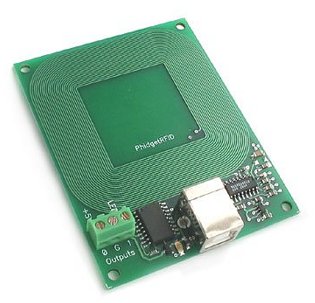
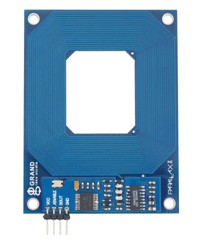
A Radio Frequency Identification (RFID) system is an identification system that uses radio waves to retrieve data from a device called a tag or transponder. RFID surrounds us in our daily lives-in supermarkets, libraries, bookstores, etc. RFID provides a quick and efficient way to collect information, such as taking stock in a warehouse, as well as tracking the whereabouts of items.

In this article, you will learn how to build a Windows application that incorporates RFID technology for data collection. I’ll demonstrate how to use two RFID readers and then I’ll compare their relative pros and cons.

Building an Enhanced Security System with a Web Cam and a Servo

Once you crack the surface of what's possible using .NET to control hardware devices you may find yourself quickly sucked in to this kind of programming. In this article, learn to control a Web cam mounted on a servo to create a sophisticated monitoring application.

Simplify Dependent Lists with the Microsoft AJAX CascadingDropDown Control

Simplify Dependent Lists with the Microsoft AJAX CascadingDropDown Control
In many Web applications, when a user selects an option from a dropdown list, the set of options on another list must change, a challenge known as the "dependent list problem." The CascadingDropDown control solves the problem with aplomb.

Thursday, September 28, 2006

Build a low-cost TTL-to-RS232 level shifter

A helpful reader of my articles, John R. Mortarelli, sent me a message on how to build a low-cost TTL-to-RS232 level shifter:

"For those with a little electronic circuit board know how, here are a couple of webpages that show how to construct for low cost ($5) a TTL - to - RS232 level shifter. http://www.zero-soft.com/HW/RS232/ and [PDF] RS232/DB9 An RS232 to TTL Level Converter ".

Thanks, John!

Wednesday, September 27, 2006

Add Drag-and-Drop Magic to Your Web Pages Using Microsoft AJAX Library

Sometimes it seems like AJAX is a layer of magic for web pages. The ability to drag and drop page "widgets" such as images and chunks of text is definitely one of those features that makes people's eyes light up. Find out how easy it is to enable client-side drag-and-drop using Microsoft AJAX Library (Atlas).

Wednesday, September 20, 2006

Review - Media Center Case: Thermaltake Mozart SX

Another media center case that I reviewed was the Mozart SX from Thermaltake (Thanks, Imei!). If you are looking for a slimmer casing for your media center, then the Mozart SX VC7000 series from Thermaltake ($250) is a good candidate.

The Mozart SX has the following features:
  • Pithy aluminum front panel design
  • Slim type DVD style and pithy aluminum front panel design
  • Built-in Media LAB kit with hot keys module:
  • Media LAB Hoy Keys function
  • Media LAB application CD and remote control
  • Media LAB VFD panel
  • Superb multimedia capability
  • Full ATX & Micro ATX & Mini ITX compatibility
  • Fits Standard PSII PSU
  • Front I/O ports for easy access
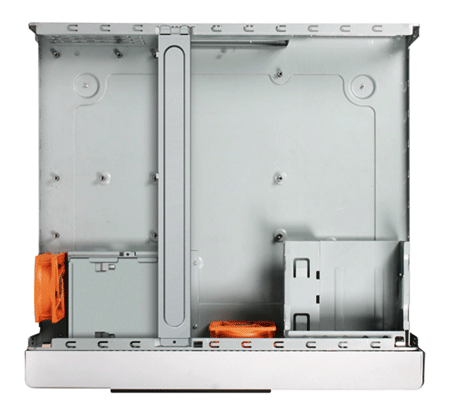
The Mozart SX supports both full-size ATX as well as micro-ATX motherboards:

If you are using a micro-ATX motherboard, you need to purchase the optional upgrade kit A2423. This kit contains a PCI-E riser card and PCI riser card.

Review - Media Center Case: Antec Fusion

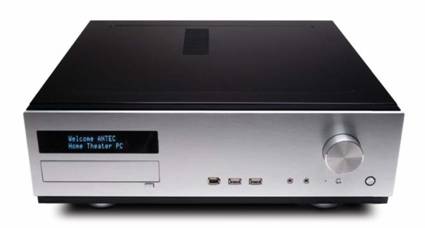
I recently embarked on a project to build my own Windows Media Center. Thanks to Antec (thanks Susie!), they sent me the Antec Fusion for review.

The Antec Fusion ($219) is the newest member of the LifeStyle family of enclosures from Antec. It is a very solid and beautifully crafted enclosure designed for those who want to integrate their media center with the audio systems. It features the following:
  • Aluminum plate front bezel with Vacuum Fluorescent Display (VFD) and Volume Control to work with media center applications. The VFD displays useful information (controlled by an application shipped with the Antec Fusion), such as RSS feeds, system information, graphic equalizer, email, etc. The Volume Control directly controls the volume of your Windows XP operating system.
  • Triple chamber structure to separate heat and noise of power supply, hard drives and motherboard for cooler and quieter operation.
  • Quiet high-efficiency 430 Watt ATX12V v2.0 power supply with universal input and active PFC.
    Removable HDD brackets with extra soft silicone grommets to reduce vibrational noise. The silicone grommets effectively quiet down my noisy Seagate hard drive and make it virtually silent.
  • Advanced cooling system: 2 x side-mounted 120mm TriCool™ 3-speed fans. The two fans have variable speeds and their speeds can be adjusted using the attached switch – low, medium, and high.
  • 3 Drive Bays
    Front Accessible: 1 x 5.25" (for a DVD drive)
    Internal 2 x 3.5" (for HDDs)
  • 4 Expansion Slots
  • Supports Micro ATX form factor motherboards(9.6" x 9.6")
  • Front-mounted ports for easy multimedia connections – 2 x USB 2.0, 1 x IEEE 1394, Audio In and Out
Due to the design of the Antec Fusion, adding or removing drives (DVD or HDD) is very easy. However, do note that only micro-ATX motherboards are supported.

Advertisement - Running Mac OS X on Windows

Monday, September 18, 2006

Incorporating Search into your Windows Applications using the Google SOAP Search API

We have reached a point where it is almost impossible to work effectively without using a search engine to look for information; and Google has played a pivotal role in this aspect. The good thing about Google is that is also exposes a set of APIs to developers so that you can incorporate search functionality into your application with ease. In this article, you will learn how to incorporate the Google Search into your Windows application.

Get Started with the Google Maps API Using ASP.NET

Using the Google Maps API, you can embed the popular Google Maps into your Web pages using Javascript. In this article, I will show you how to get started with the API.

Make Your AJAX Apps Wiser Using Auto-Complete Functionality in Atlas

The whole point of AJAX is to make things faster, so why not include functionality that completes your users' thoughts as they type? In Atlas you can easily implement auto-completion functionality using the AutoCompleteExtender control.

Tuesday, September 12, 2006

Using Data Compression in .NET 2.0

New compression classes are available in the .NET Framework 2.0, and they can be used to reduce the size of data transmitted over a network. In this article, I show you how to use the compression classes in .NET 2.0 in a web service environment.

Incorporating Search into your Windows Applications using the MSN Search API

Not wanting to be left behind by all the major search engines such as Yahoo! and Google, Microsoft has also entered the market with its own search engineMSN Search. This article will show you how to incorporate the MSN Search into your Windows application.

Monday, September 11, 2006

Taking iPod on the Road

The battle for the MP3 players have never been more intensified. With so many different players jostling for a place in the market, it is interesting to bet who the eventual winner is. Of course, the incumbent winner is definitely Apple’s iPod. To see the amount of industry support and interest for this Apple product, you just need to look at the number of accessories designed specifically for the iPod.

And so lately, sick of swapping CDs in my car’s limited 6-disk changer, I decided to hook my iPod to the car and do away with the in-car disk changer. The two criteria that are important to me are:

* Power charging. As iPod runs out of juice pretty quickly, it is a necessity for me to charge it on the road.
* Connect to my in-car stereo without needing to modify my car.

Fortunately, there exist many different solutions that meet my requirements. First, for the power you can use the Belkin Auto Charger for iPod (see Figure 1).

Figure 1. Belkin Auto Charger w/Audio for iPod

For iPod music playback in your car, there are generally two solutions:
* Use a Car cassette adapter, or
* Use a FM transmitter

According to feedback from a number of users, using a car cassette adapter actually produces better sound quality than using a FM transmitter. You simply plug one end of the adapter into your iPod and slide the cassette adapter into the cassette player in your car. The Sony Car Cassette Adapter is one of them (see Figure 2).

Figure 2. The Sony Car Cassette Adapter

For the FM transmitter, it basically broadcast the music from your iPod using one of the selected FM frequencies. To listen to the music, you need to tune your car stereo to the designated frequency. The Griffin iTrip FM transmitter (see Figure 3) connects to the top of iPod and draws its power from the iPod and transmits the music over the selected FM frequency.

Figure 3. The Griffin iTrip FM Transmitter

Lately, there seems to be a wave of new all-in-one car accessories for the iPod. These all-in-one accessories combined a charger and a FM transmitter into one, making it convenient for car owners. The Monster iCarPlay Wireless is one of them (see Figure 4).

Figure 4. Monster iCarPlay Wireless - FM Transmitter for iPods

After a long search at the local Apple Stores, I settled for an all-in-one solution from Griffin – the Griffin RoadTrip. The Griffin RoadTrip is both a charger and a FM transmitter for iPod and iPod Mini.

In this article, I will share with you my experience of setting up the Griffin RoadTrip in my car and how you can use your car stereo to play music stored on your iPod.

What You Need
Here is a list of things you need:
* Griffin RoadTrip (
http://www.griffintechnology.com/products/roadtrip/)
* 3rd/4th Generation iPod or iPod Mini
* Car (of course!)

The Griffin RoadTrip cost about $80. For this article, I used my 3rd generation 20 GB iPod. The Griffin RoadTrip connects to the cigarette lighter of your car. Figure 5 shows the main parts of the Griffin RoadTrip.

Figure 5. The Griffin RoadTrip

Let’s examine the various parts of the Griffin RoadTrip in more details. Figure 6 show the cradle with the removable FM radio transmitter module.

Figure 6. The cradle with the FM Transmitter Module
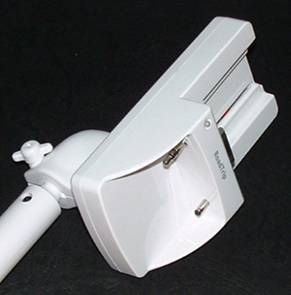
The nice feature about the Griffin RoadTrip is the ability to remove the FM radio transmitter module. Figure 7 shows the cradle with the module removed.

Figure 7. The cradle with the FM Transmitter Module removed

Using the included cables (see Figure 8), you can connect the FM radio transmitter module to your computer so that the audio output is broadcasted over the FM frequency. One limitation of this is that the radio module requires an external power (drawing from the USB connection from a computer) and it is unable to draw power from an iPod directly. This prevents you from connecting the module to the iPod directly.

Figure 8. The FM Transmitter Module with cables
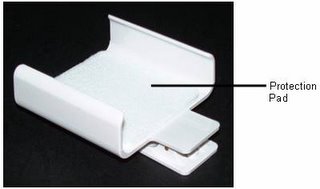
The Griffin RoadTrip comes with a holder to hold your iPod (see Figure 9). It also doubles up as a belt clip. Depending on the size (and thickness) of your iPod, you may need to stick the included protection pad to the holder so that it can snugly fit your iPod.

Figure 9. The iPod holder/belt clip with the protection pad
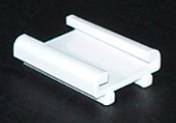
For iPod Mini users, use the clip holder for the iPod Mini instead (included in the package, see Figure 10).

Figure 10. Clip holder for iPod Mini

Figure 11 shows my iPod in the holder.

Figure 11. The iPod in the holder

With the iPod in the holder, you can now sit it in the cradle (see Figure 12).

Figure 12. The iPod in the charging cradle

Mounting the Griffin RoadTrip
With the components all set up, it is now time to mount it in the vehicle. First locate the cigarette lighter outlet (see Figure 13). Depending on the make of your car, the positioning of your cigarette lighter outlet may affect your positioning of the Griffin RoadTrip.

Figure 13. Locating the cigarette lighter outlet

One thing I realized when I was mounting the Griffin RoadTrip is that with the extension arm it feels really fragile, especially when you are driving. And so I removed the extension arm and mount it into the cigarette lighter outlet (see Figure 14).

Figure 14. Mounting the Griffin RoadTrip

There were some reviews on the Web that mentioned the Griffin RoadTrip obstructing the gear shifts, but for the Nissan Sunny, this is not a problem (see Figure 15).

Figure 15. The Griffin RoadTrip does not obstruct the gear shifts of my Nissan Sunny
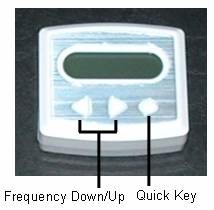
Once the Griffin RoadTrip is mounted, simply turn on the Griffin RoadTrip by pressing and holding the Quick Key (see Figure 16) button. Select a frequency to broadcast the music on your iPod by pressing the Frequency Down/Up buttons.

Figure 16. The buttons on the FM radio transmitter

Turn on your car stereo and then tune in to the designated frequency. You should now be able to hear the music from your iPod!

Summary
Overall, the Griffin RoadTrip is easy to set up and use. However, if you are particular about sound quality, I need to tell you that some hissing noise can be heard when you are playing from the iPod. However, I find it acceptable and at least I can now hit the road with the company of my favorite songs!